
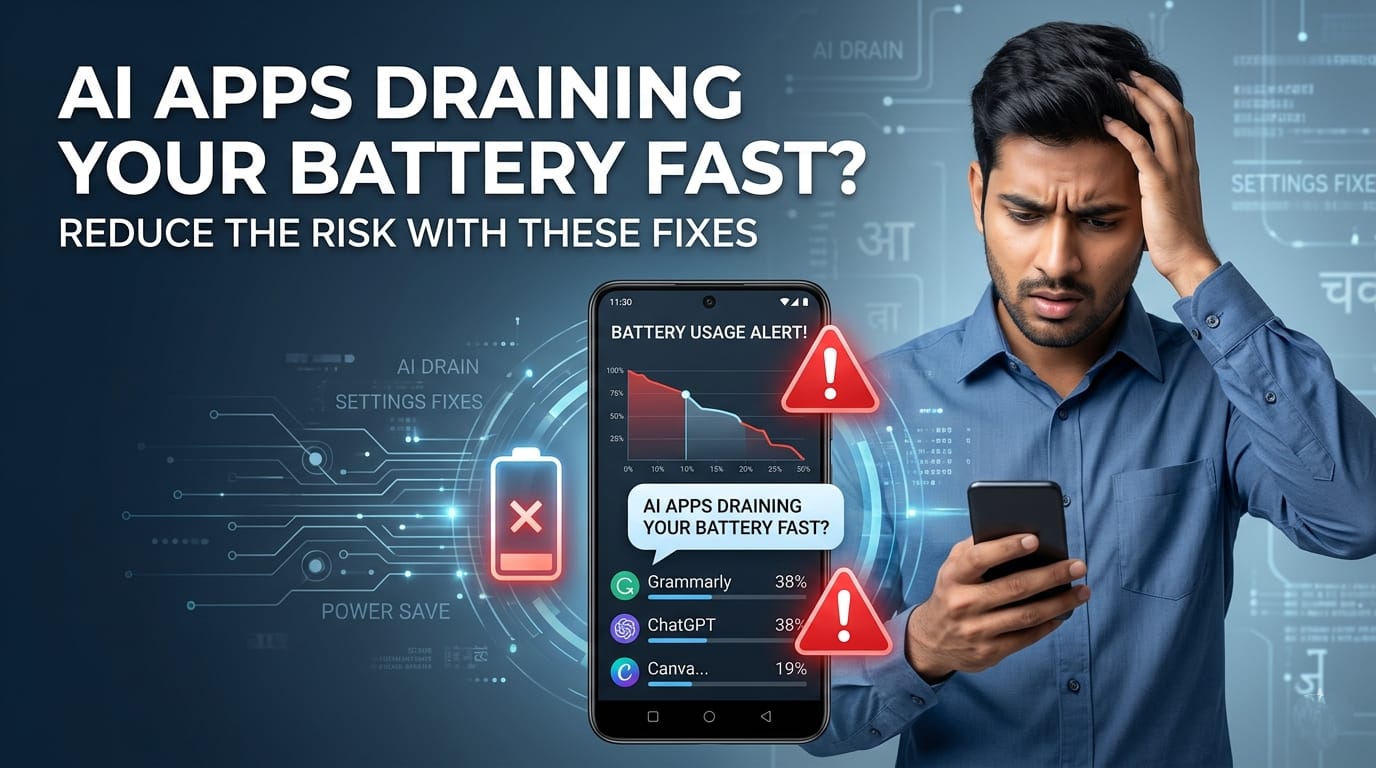
Every morning begins the same way for most of us. You charge your phone to 100%, head out for college or work, and open your favorite new AI tool to summarize a PDF, remove a photo background, or draft an email. By lunchtime, you glance at the top right corner of your screen, and panic sets in. Your battery is already down to 35%, and the back of your phone feels like a hot tawa.
If this sounds familiar, you are not alone. Thousands of Indian professionals and students are noticing that their smartphones are dying much faster lately.
But here’s the real issue: we blame our phone’s age or the latest software update, but the real culprit is often the heavy AI applications we use throughout the day. Let’s look at why this happens and how you can fix it without giving up on your favorite productivity tools.
A. The Hardware Strain: Why AI is an “800-Pound Gorilla” for Battery
Traditional apps like WhatsApp, Instagram, or basic web browsers rely mostly on your phone’s CPU (Central Processing Unit) for daily tasks. They ask the phone to download some text, show an image, or play a video. Your phone handles this easily without breaking a sweat.
AI apps are entirely different beasts. When you use an app to generate an image, rewrite essays, or process live data, it bypasses the standard chips and pushes your phone’s NPU (Neural Processing Unit) and GPU (Graphics Processing Unit) to their absolute limits.
This massive computational workload creates a chain reaction inside your device:
- The NPU & GPU Max-Out: Traditional apps keep chips in low-power states. AI apps (especially local image generation or real-time voice tools) force the NPU and GPU to run at peak frequency continuously.
- Thermal Escalation & Resistance: Heavy AI computations generate intense heat inside the chassis. When phone hardware heats up, its electrical resistance increases. This forces the battery to work twice as hard and drain double as fast just to move the same amount of power.
- The Power Impact: On-device generative AI can significantly increase power consumption compared to standard mobile apps.
B. The Background Siphoning (Invisible Power Sucking)
Sometimes your phone drains rapidly even when it is sitting quietly in your pocket. This is where background processing comes into play.
- Continuous Background Tasks: Some AI-powered assistants may perform background processing to provide personalized suggestions and features, meaning your phone handles computational tasks even when you aren’t actively using it.
- Cloud vs. On-Device Data Ping: If your AI tool relies on cloud servers (like ChatGPT Plus), it must constantly send and receive massive data packets. If you are using 5G in an area with a spotty network, your phone’s internal modem has to work overtime, consuming massive amounts of power.
- Wake-Lock Persistence: Many AI apps utilize what developers call “wake-locks.” These permissions tell your operating system to bypass normal sleep modes, keeping background calculations running even when your screen is completely turned off.
🛠️ Immediate Technical Fixes (OS-Level Tweaks)
You don’t need to uninstall your favorite productivity tools to save your phone. A few quick adjustments in your settings can make a massive difference.
Restricting Background Activity & Data
Prevent apps from running complex tasks when you aren’t actively looking at them.
- Android: Go to Settings > Apps > Select your AI App > Battery, and change the setting to Restricted.
- iOS: Go to Settings > General > Background App Refresh, and toggle it OFF for your specific AI tools.
On-Demand Model Toggling
If your phone uses predictive AI typing engines, automatic image enhancers, or always-on AI voice activation, turn them off in your primary system settings. Only activate these tools manually when you actually intend to use them.
Network Throttling for AI
Go into your AI app permission settings and restrict them to Only on Wi-Fi wherever possible. Running cloud-based AI queries over a fluctuating 5G cellular network can drain your battery much faster due to signal search stress.
💡 Smart Workflow Adjustments for Power Users
Let’s be practical: if you rely on these tools for work or studies, you cannot stop using them. Instead, change how you use them.
- The “Short Burst” Rule: Avoid running heavy AI tasks—like video expansions or complex image rendering—for 20 minutes straight. Break your work into 1–2 minute intervals, giving your phone 30 seconds to cool down between tasks.
- Offloading to Web Browsers: For many cloud-based AI services, web versions may reduce some device-side processing compared to dedicated mobile apps. Instead of downloading dedicated, heavy applications for every AI service, trying their official website versions inside Google Chrome or Safari can be a lighter option.
- Clearing Model Cache Regularly: Some offline AI tools save heavy language models and temporary files directly to your phone’s storage. Go into your app settings and clear the cache weekly to reduce the memory occupancy and computational load on your device.
📱 5 Popular AI Tools We Use Daily (And Their Battery Impact)
To manage your battery effectively, it helps to understand which tools demand the most power and how to use them smartly.
| AI Tool | Category | Practical Indian Use-Case | Why It Drains Battery |
|---|---|---|---|
| ChatGPT | Productivity & Study | Students practicing interview questions or summarizing college lectures. | Continuous voice modes and advanced reasoning require non-stop cloud data streaming. |
| Canva / Adobe Lightroom | Content Creation | Freelancers and creators editing Instagram reels or product photos on the go. | Local image rendering and generative fill options max out the phone’s GPU instantly. |
| Microsoft Copilot | Office & Research | Corporate professionals summarizing long PDFs and project proposals during daily commutes. | Constant background data synchronization and live web-scraping heavily tax the network modem. |
| Grammarly Keyboard | Daily Communication | Job seekers writing professional messages on LinkedIn or drafting emails to clients. | Because it runs on top of every app via your keyboard, it constantly processes text in the background. |
| Perplexity AI | Learning & Search | Researching topics without clicking through dozens of ad-heavy Indian websites. | Performs multi-source live web searches and processes natural language answers simultaneously. |
🔋 Long-Term Battery Health Safeguards
If your phone’s battery health degrades entirely, no amount of setting tweaks will save it. Keep these final system-level safeguards in mind:
- Enabling Adaptive Battery Management: Always keep Adaptive Battery (Android) or Optimized Battery Charging (iOS) enabled. These features use basic machine learning to understand your habits and put power-hungry AI apps into a deep sleep when you are busy.
- The Update Rollback Strategy: Be careful with major software updates. If you notice a sudden, massive drop in battery life right after a new operating system patch, the new built-in AI features might be poorly optimized. Consider turning off those specific native features or rolling back the update until a stable secondary patch is released.
Check our guide on the [best free AI tools for students] to find lightweight web alternatives that won’t kill your device.
Don’t forget
- Avoid charging while using AI tools: Running heavy AI tasks while your phone is plugged in creates excessive heat, which permanently degrades your battery health.
- Web versions are your friend: When working at a desk, always prefer the desktop or mobile browser version of cloud-based AI tools over the mobile app to potentially reduce local strain.
- Watch the 5G usage: Try to perform heavy AI data processing while connected to stable Wi-Fi rather than moving cellular data.
- Monitor your battery settings: Check your phone’s battery usage menu once a week to identify which specific AI app is hogging the most percentage.
Disclaimer: This article is for educational and informational purposes only. It should not be considered financial, technical, or professional advice. Readers should verify tools and use them at their own discretion.
Leave a Reply