

Imagine you are commuting in a crowded Delhi Metro or a local bus in Mumbai. You need to quickly summarize a long PDF for a college project or draft a formal email to your boss. You open a popular AI app, but your phone freezes. The screen goes black, and after five seconds of frustration, the app simply crashes.
If you are using a smartphone with 3GB or 4GB of RAM—common in budget models like the Redmi 12, Realme C-series, or older Samsung M-series—this is a daily reality. Modern AI apps are “resource-heavy.” They eat up memory, drain your battery, and heat up your device faster than a summer noon in Rajasthan.
But here’s the real issue: You don’t actually need a flagship phone to use AI. You just need to change how you access it.
Quick Comparison: AI Apps vs. Lightweight Web Alternatives
| Tool | Privacy Level | Best For | Use Case |
|---|---|---|---|
| Gemini Web | Ultra Low | Multitasking | Homework & Fast Emails |
| Microsoft Copilot | Low (via Edge) | Productivity | Job Applications & MS Office |
| Perplexity | Low | Real-time Info | Research & News Updates |
| AudioPen | Minimal | Voice-to-Text | Walking/Commuting Notes |
| NotebookLM | Medium | Study/Analysis | UPSC/JEE Note Summaries |
Why Your Phone Struggles with Large AI Apps
Let’s be practical. Most high-end AI apps are designed for global markets where 8GB to 12GB of RAM is the standard. In India, budget-friendly smartphones often struggle because these apps run heavy background processes that fight with your WhatsApp and Instagram for that tiny slice of available memory.
The “brain” of the AI isn’t even on your phone—it’s in the cloud. Your phone is just a window. If the window is too heavy to lift, why not use a lighter one?
5 Lightweight AI Options That Won’t Freeze Your Phone
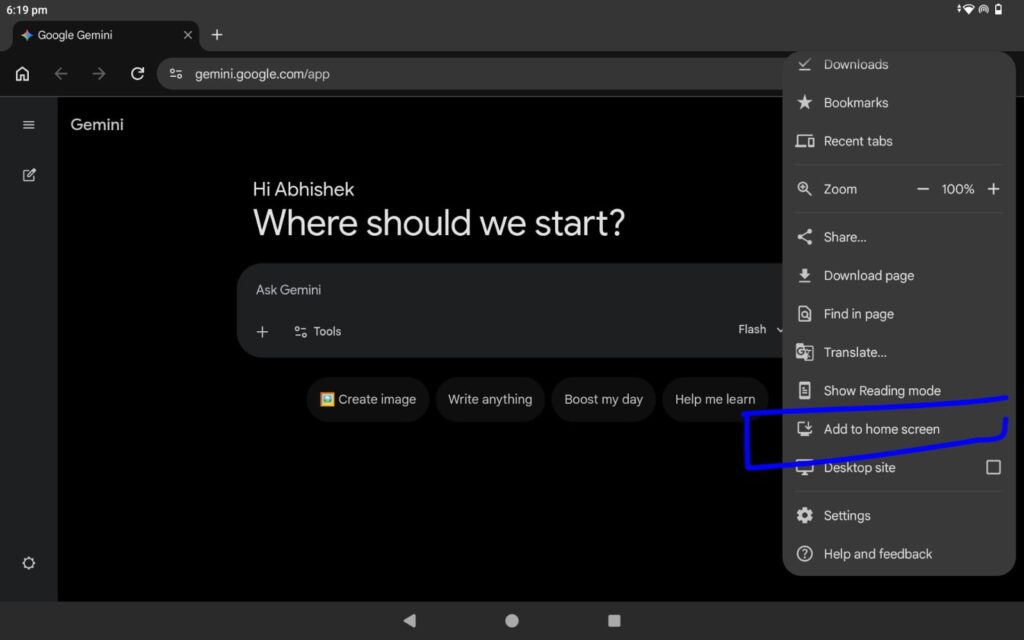
1. Google Gemini (The Web Shortcut Hack)
The official Gemini app often replaces Google Assistant, which can significantly slow down older Android versions.
The Solution: Don’t download the app. Open gemini.google.com in your Chrome browser.
Indian Use Case: Take a photo of a complex Math problem from your textbook and ask for a step-by-step solution.
02. Microsoft Copilot (The Browser Integration)
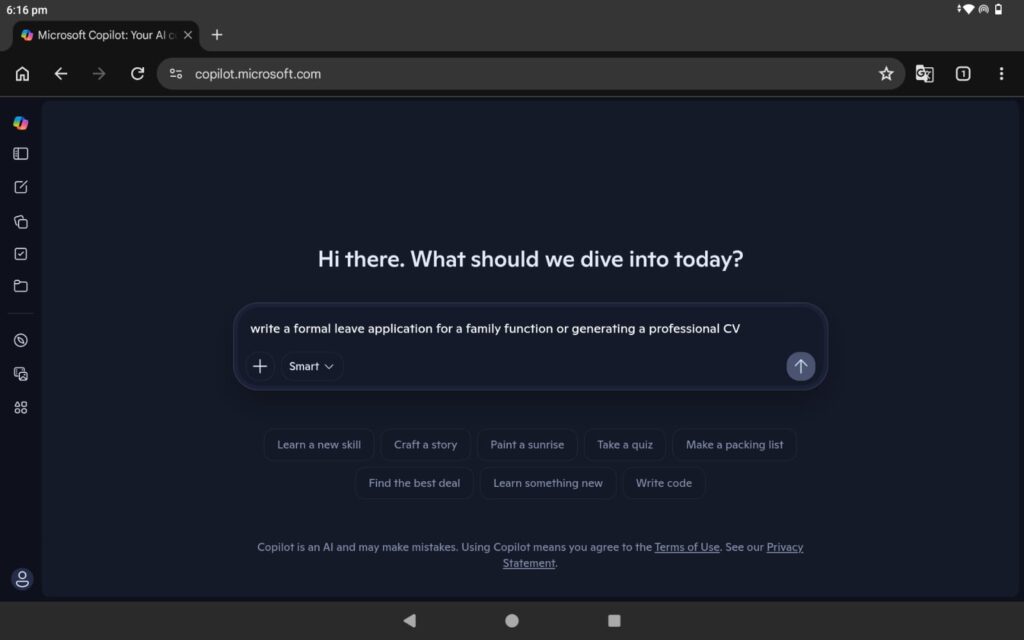
The standalone Microsoft Copilot app is notorious for being “laggy” on budget phones because it tries to do too many things at once.
The Solution: Instead of the app, use the Microsoft Edge browser. It has Copilot built into the bottom bar. It’s highly optimized and won’t crash your system.
Indian Use Case: Asking the AI to write a formal leave application for a family function or generating a professional CV.
03. Perplexity AI (The Search Engine Replacement)
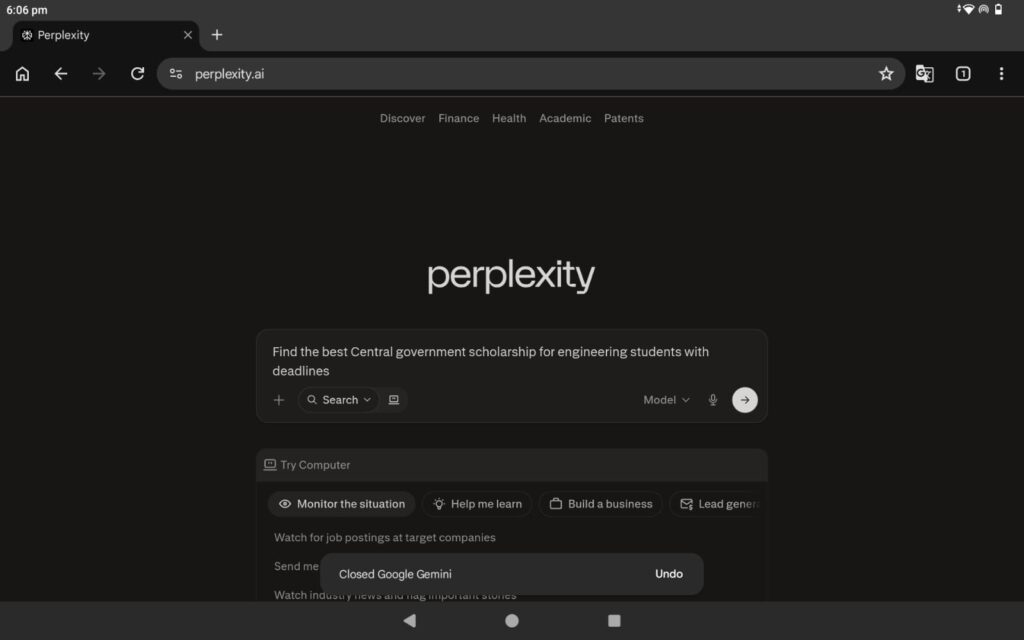
If you are a student, this is a game-changer. It gives direct answers with citations, so you don’t have to open ten different tabs.
The Hack: Use the mobile website (perplexity.ai) instead of the app. It is 10x faster on low-end devices.
Indian Use Case: “Find the best central government scholarships for engineering students with deadlines.”
04. AudioPen.ai (The Voice-to-Note Tool)
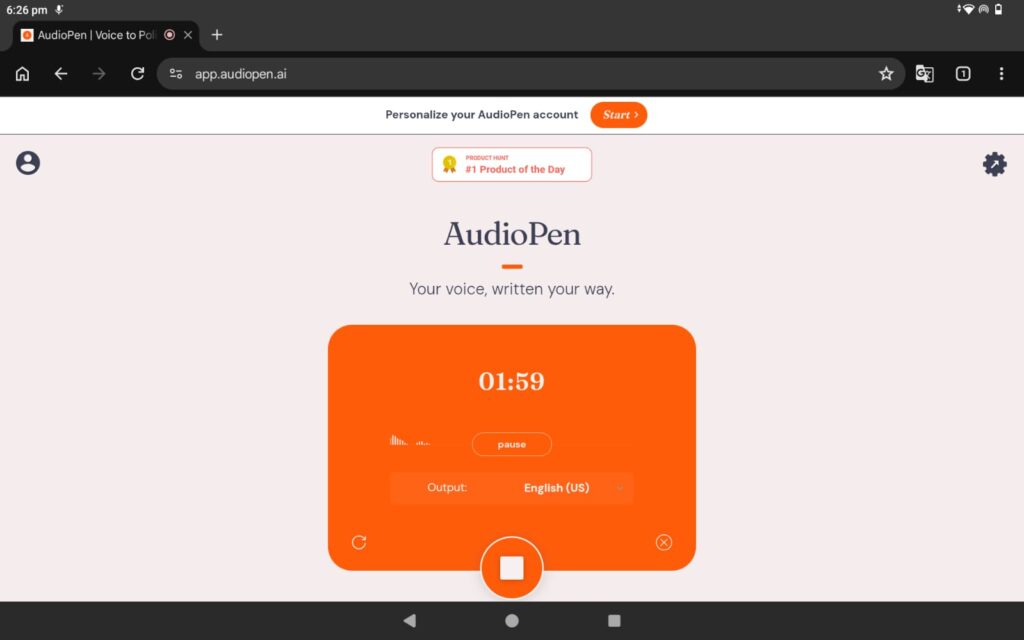
For those who find typing on small screens tedious, AudioPen is a lifesaver. It’s a web-based tool—you just talk, and it converts your unstructured speech into a perfectly formatted note.
Indian Use Case: Recording your business ideas while walking to the station and getting a clean summary instantly.
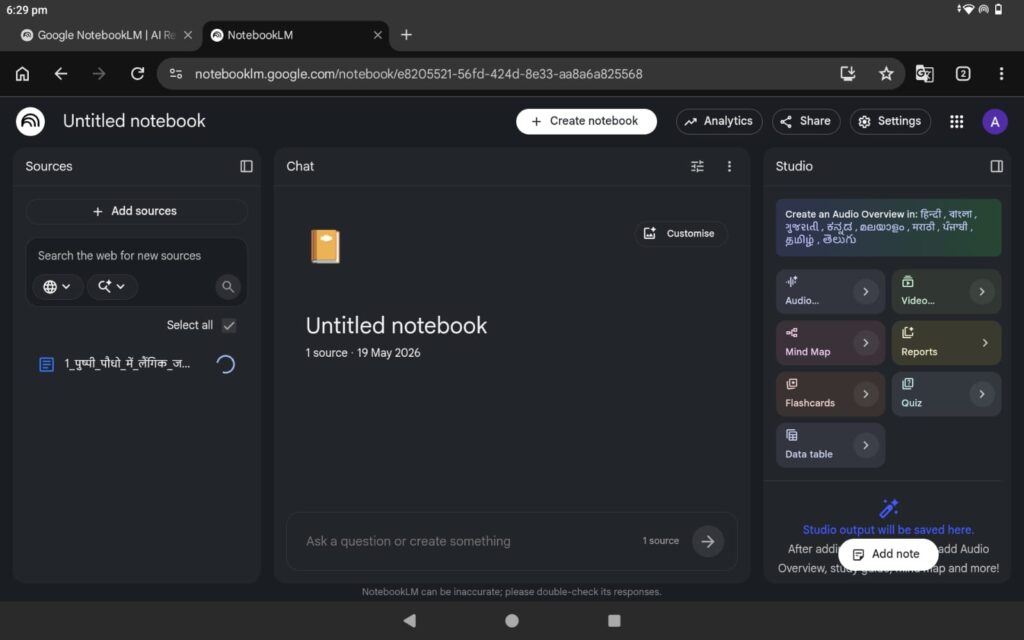
05. NotebookLM by Google
This is a hidden gem for researchers and students. It is a web-only tool where you can upload your PDFs or notes.
Indian Use Case: Uploading heavy UPSC or JEE study materials and asking the AI to quiz you on specific chapters without crashing your phone.
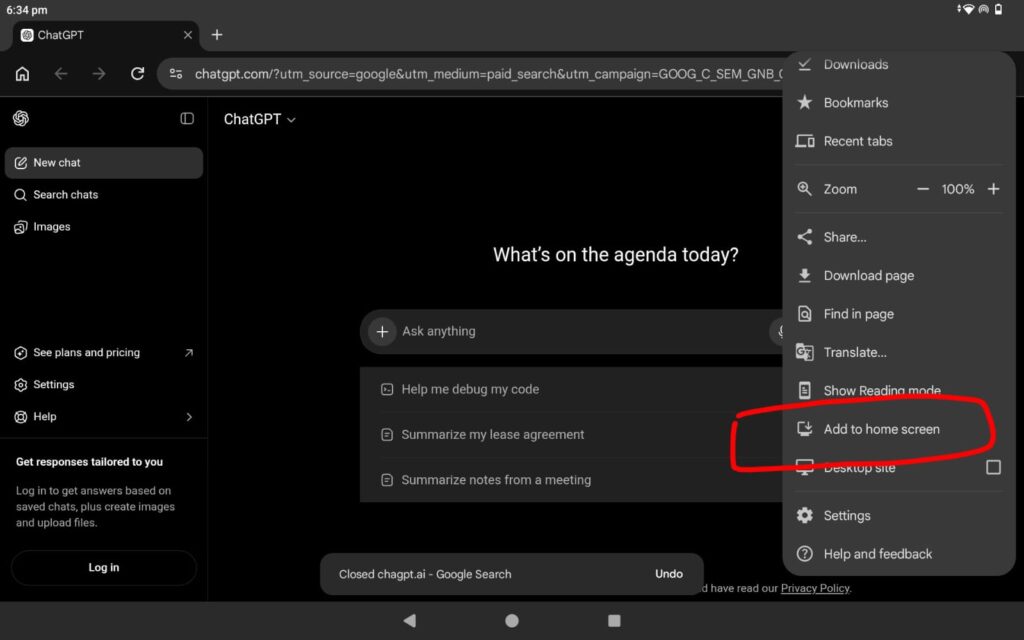
🛠️ Step-by-Step: How to Create Your Own “Lite AI App”
Follow these steps to turn any AI website into a lightweight app:
- Open Chrome and go to an AI site (e.g., chatgpt.com).
- Tap the three dots (⋮) in the top right corner.
- Select “Add to Home Screen” or “Install App.”
- A small icon will appear on your home screen. It works exactly like an app but uses almost zero background RAM.
💡 Inside Edge Insight: The “PWA” Secret
Most people don’t realize that 90% of AI apps are just “wrappers”—they are essentially the website hidden inside an app shell. This shell consumes unnecessary storage and RAM. In 2026, the smartest move is using Progressive Web Apps (PWAs). They are usually under 1MB and run using your existing browser’s engine.
Things to Remember
01. Clear Browser Cache: Once a week, clear your Chrome cache to keep performance snappy.
02. Avoid “All-in-One” AI Apps: Many 3rd party apps claim to offer “ChatGPT + Gemini + Claude” in one place. These are often filled with ads and trackers that heat up your phone.
03. Use Lite Browsers: If Chrome feels heavy, try Via Browser or Opera Mini to access AI websites.
04. System Updates: Keep your ‘Android System Webview’ updated via the Play Store. It helps AI websites render much faster.
Moving Forward
Using AI shouldn’t be a privilege for those with expensive iPhones. By shifting from heavy apps to smart browser shortcuts, you can get the same “brain power” without the lag. Delete one heavy app today and try the web version—your phone will thank you!
Disclaimer:
This article is for educational and informational purposes only. It should not be considered technical or professional advice. Readers should verify tools and use them at their own discretion.
Leave a Reply